Step 1:
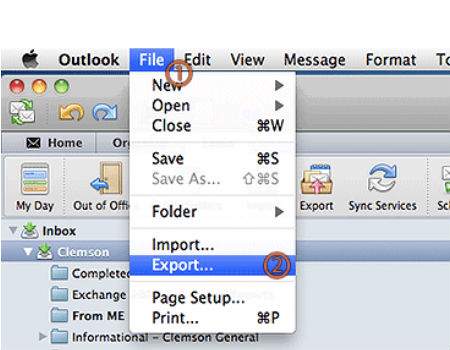
From the ‘File’ menu, select ‘Export.’
Step 2:
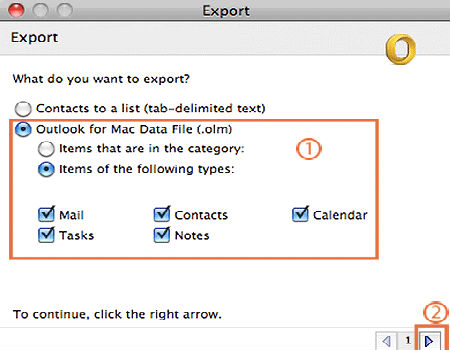
Select an ‘Outlook for Mac Data File (.olm)’ and then select what information you will export. Click ‘Next.’
Step 3:
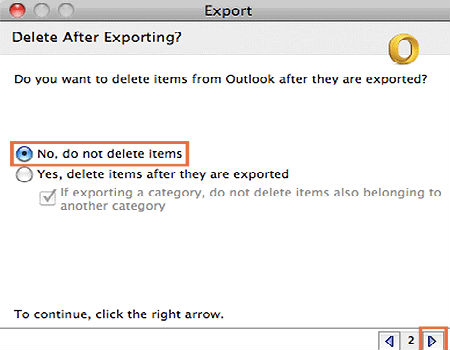
Select ‘No, do not delete items’ and click the right arrow.
Step 4:
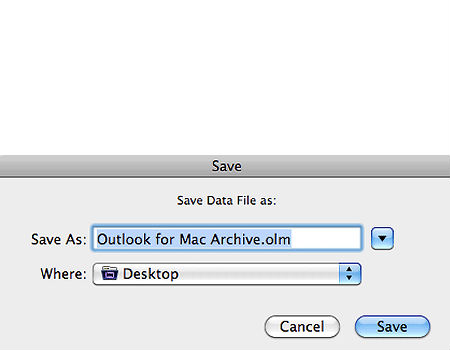
Choose the name and location for the new export file to be saved to. Click the ‘Save’ button.
Step 5:
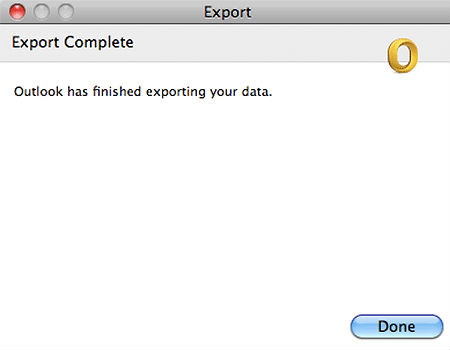
Click ‘Done’ to complete export.